The queue, posting times and drafts
Set posting times for each channel, add posts to the queue, and keep unfinished ideas as drafts.
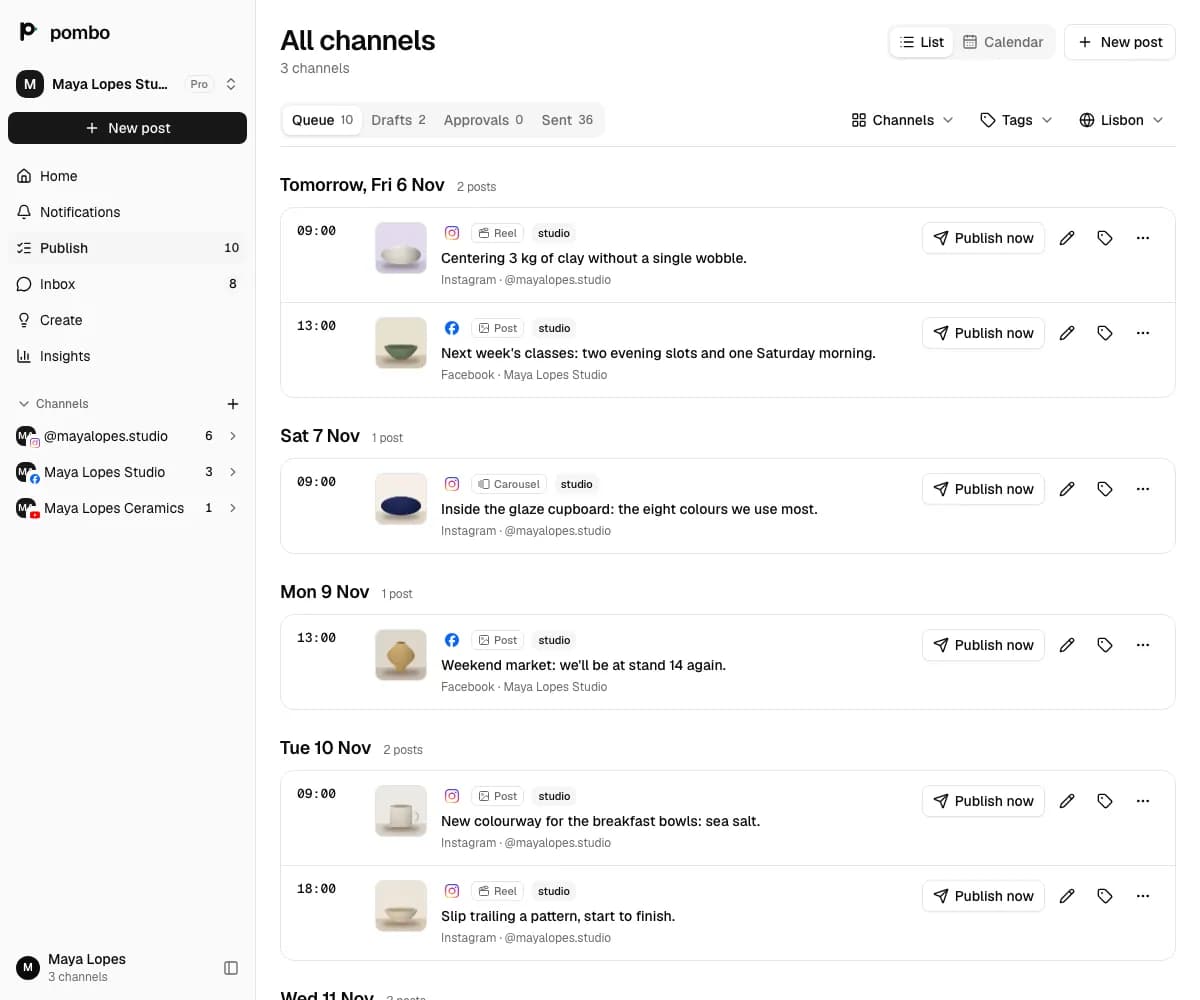
Publish is where your posts live. It has four tabs: Queue, Drafts, Approvals and Sent. You can filter it by Channels, Tags and Time zone, and switch between List and Calendar.
Posting times: each channel has its own times. Go to Settings → Channels, open a channel, and find Posting slots. Under Add a posting time for, choose Every day, Weekdays or one day. Set the time under At, then press Add posting time. The card lists the next 5 open times. Times follow your workspace's time zone, including daylight-saving changes.
Add to queue puts a post in the channel's next free posting time. Each channel is filled separately. If a channel has no posting times, Next slot is turned off for it in the composer.
Drafts: press Save draft in the composer. A draft needs some text or a photo or video. Drafts appear in the Drafts tab, newest edit first. Drafts without a date also appear in the calendar's No date panel. To send a draft, open its row and choose Add to queue or Schedule….
Row menu (⋯)
- Schedule: Add to queue, Schedule…, Move to drafts
- Copy: Duplicate post, Copy link
- Repeat: Make recurring
- Remove: Delete post (this can't be undone)