Use the calendar
See your posts by week or month, and drag a scheduled post to a new time.
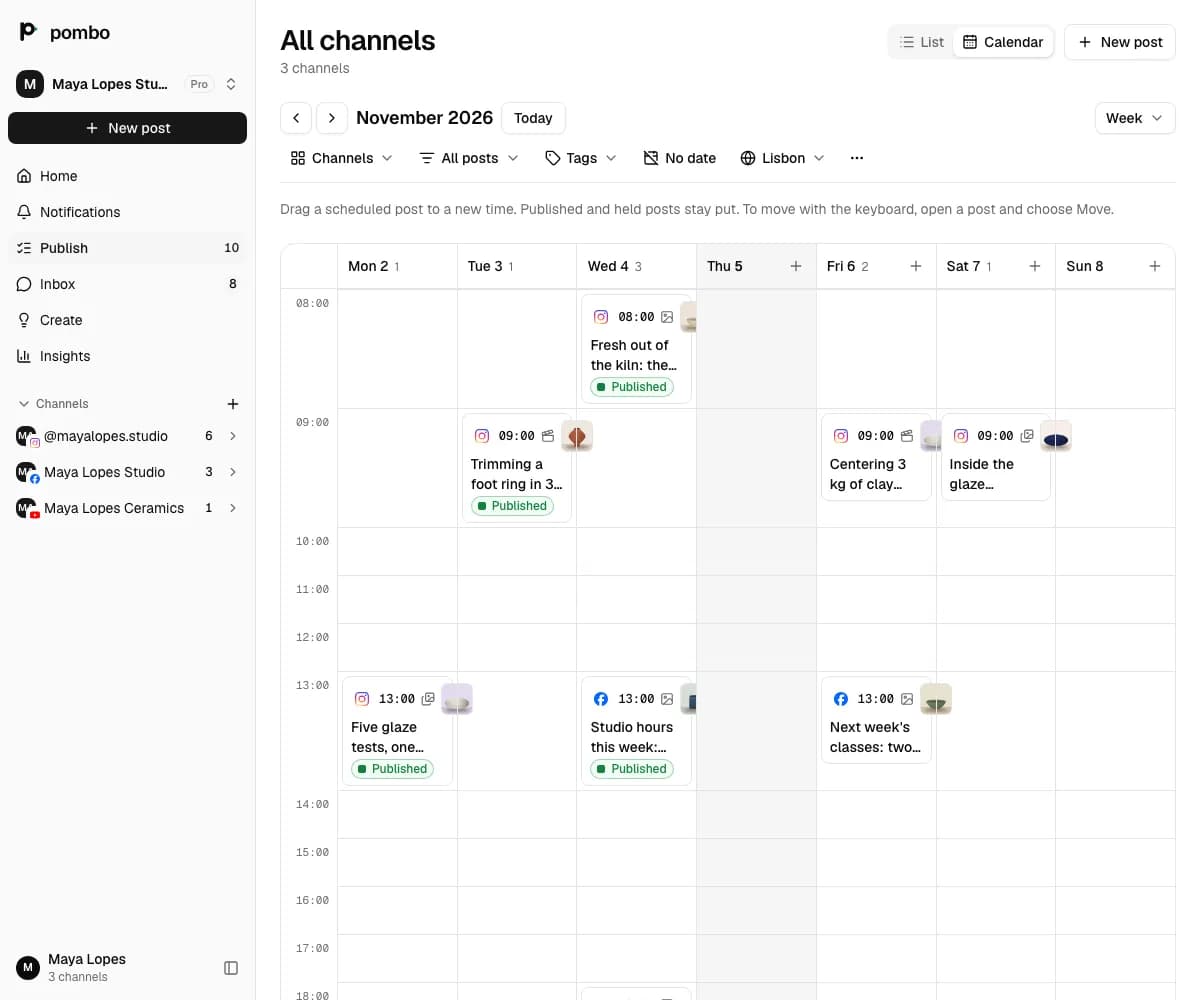
Open Publish and switch to Calendar. Choose Week or Month. To narrow it down, use Show and pick All posts, Drafts, Scheduled or Sent. The ⋯ menu has Show posting times. Click an open slot to start a new post at that time.
Drag to reschedule
- Week: drop the post on another hour; the minutes stay the same.
- Month: drag the post to another day; the time stays the same.
You can't drop a post in the past. If you try, Pombo asks you to "Pick a time after now". After a move, Pombo says "Moved to …" and offers Undo. On the week view without a mouse, open the post, choose Move…, and save.
Only scheduled posts move. Hover over any other post to see why it can't:
- Published posts already went out.
- Held posts need a retry or an edit in Publish first.
- A post that is going out right now can't be moved.
- Drafts must be opened and scheduled first.
- Posts waiting for approval must be opened to change them.